65B, Computer Village, Ikeja Along, Lagos State
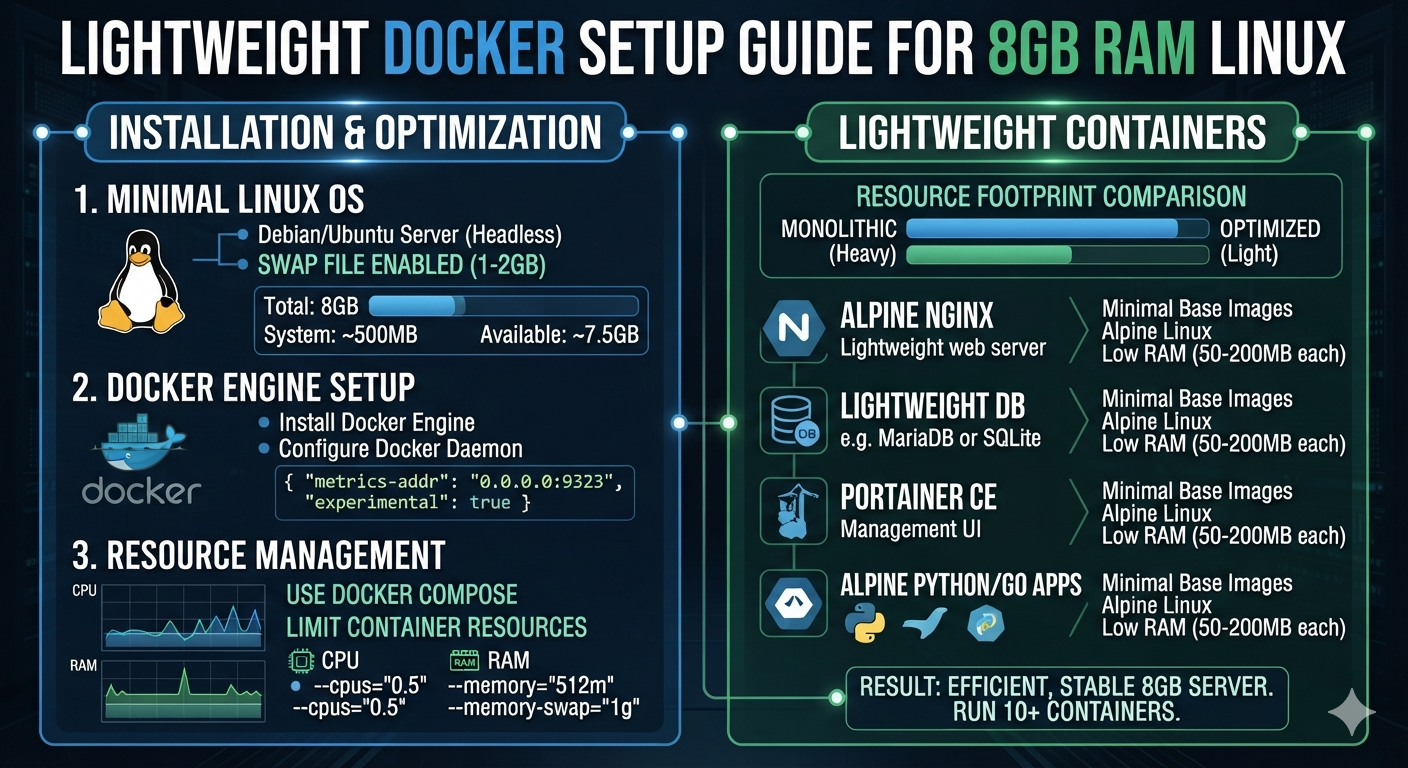
Lightweight Docker Setup Guide for 8GB RAM Linux Machines
Running Docker on an 8GB RAM Linux machine does not have to mean constantly fighting frozen terminals, sluggish applications, or exhausted memory. With the right configuration, you can run Docker comfortably while keeping enough resources available for your operating system and development tools.
This guide explains how to create a practical Docker environment for developers using Linux machines with limited RAM, particularly when running services such as Laravel, MySQL, Redis, Node.js, and Nginx.
Why Docker Can Feel Heavy on 8GB RAM
Docker itself is relatively lightweight compared with running multiple traditional virtual machines. The problem usually comes from the services running inside the containers, not Docker alone.
A development environment might include:
- PHP/Laravel
- MySQL
- Redis
- Node.js
- Nginx
- phpMyAdmin
- Elasticsearch
- MailHog
- Queue workers
Running all of these simultaneously on an 8GB machine can quickly consume available memory.
The solution is not necessarily to stop using Docker. Instead, you should run only what your project actually needs and configure the environment carefully.
1. Check Your Available Resources
Before changing your Docker configuration, find out what your machine is currently using.
Check your memory:
free -hYou should see something similar to:
               total        used        free
Mem:           7.7Gi       3.2Gi       1.1Gi
Swap:          2.0Gi       0.0Gi       2.0Gi
Also check CPU information:
nprocAnd check disk space:
df -hThese three commands give you a quick overview of your available RAM, CPU cores, and storage.
If your machine has 8GB RAM but your desktop environment already consumes 3–4GB, Docker may have considerably less memory available than you expect.
2. Install Docker
On a Linux development machine, Docker Engine is generally preferable to installing unnecessary virtualization layers.
After installation, verify that Docker is working:
docker --versionThen run:
docker run hello-worldIf the command completes successfully, your Docker installation is ready.
You can also check currently running containers:
docker psAnd all containers, including stopped ones:
docker ps -a3. Keep Your Containers Lightweight
One of the biggest mistakes on an 8GB machine is creating a container for every possible development service.
For a Laravel application, you may only need:
Nginx
PHP
MySQL
Redis
You probably do not need Elasticsearch, MailHog, phpMyAdmin, multiple Node containers, and several queue workers running permanently.
Start with the minimum.
For example:
services:
  app:
    build: .
    container_name: laravel_app

  nginx:
    image: nginx:alpine

  mysql:
    image: mysql:8.0

  redis:
    image: redis:alpine
Notice the use of Alpine-based images where appropriate.
They are often smaller than their full-sized alternatives, although image size does not directly translate into runtime RAM usage. The important goal is to avoid unnecessary software and background processes.
4. Optimize Docker Compose
Docker Compose makes it easy to start an entire application with one command.
However, you don’t have to start every service every time.
Instead of:
docker compose up -dyou can start only the services you need.
For example:
docker compose up -d app nginx mysqlIf Redis is not required for your current task, don’t start it.
This simple habit can make a noticeable difference on an 8GB machine.
Use Profiles for Optional Services
Docker Compose profiles are useful for optional development tools.
For example:
services:
  app:
    image: myapp

  mysql:
    image: mysql:8.0

  phpmyadmin:
    image: phpmyadmin
    profiles:
      - tools
Your normal environment can run without phpMyAdmin:
docker compose up -dWhen you actually need it:
docker compose --profile tools up -dThis prevents optional services from consuming resources unnecessarily.
5. Control Memory Usage
You can also place memory limits on containers.
For example:
services:
  mysql:
    image: mysql:8.0
    mem_limit: 1g

  redis:
    image: redis:alpine
    mem_limit: 256m
This prevents a single service from consuming an unreasonable amount of memory.
However, memory limits should be chosen carefully.
If you give MySQL only a tiny amount of RAM while running a large database, you may create performance problems instead of solving them.
The goal is controlled resource usage, not simply assigning the smallest possible number.
6. Configure MySQL Carefully
MySQL can become one of the larger memory consumers in a development environment.
You generally don’t need production-level database configuration on a local 8GB development machine.
For development workloads, consider using a smaller MySQL configuration.
For example:
[mysqld]
innodb_buffer_pool_size=256M
max_connections=50
The correct values depend on your application and database size.
If you are developing a small Laravel application with a modest local database, there is little reason to configure MySQL as though it were serving thousands of production users.
7. Be Careful With Node.js
Node.js development tools can also consume significant memory, particularly when running development servers, bundlers, watchers, and large projects.
If your Laravel project uses Vite, for example, you may not need a permanent Node.js container.
You can run your frontend development environment only when you’re actively working on it.
For example:
npm run devAlternatively, you can run Node directly on the Linux host while keeping your database and backend services inside Docker.
This hybrid approach can be perfectly reasonable for a development machine.
8. Use Swap as a Safety Net
An 8GB machine benefits from having some swap space.
Check your current swap:
swapon --showIf you have no swap configured, you can create one depending on your Linux distribution and system configuration.
Swap is not a replacement for RAM.
It is considerably slower than physical memory, but it can prevent your entire system from becoming unstable when memory usage temporarily spikes.
For development machines, having a reasonable amount of swap can therefore provide an additional safety buffer.
9. Monitor Docker Resources
Don’t guess which container is consuming your memory.
Docker provides a useful command:
docker statsYou’ll see information similar to:
CONTAINER       CPU %    MEM USAGE / LIMIT
laravel_app     2.4%     320MiB / 1GiB
mysql           4.1%     580MiB / 1GiB
redis           0.3%     25MiB / 256MiB
This makes it much easier to identify the actual problem.
If MySQL is consuming most of your available memory, optimize MySQL.
If Node is responsible, look at your frontend tooling.
Don’t reduce resources everywhere without knowing what is actually causing the problem.
10. Clean Docker Regularly
Docker can accumulate unused containers, networks, images, and build cache.
Check Docker’s disk usage:
docker system dfYou can remove unused resources with:
docker system pruneBe careful with aggressive cleanup commands.
For example:
docker system prune -acan remove unused images that you may want to keep.
Before running cleanup commands, understand what Docker considers unused.
A Practical 8GB Development Setup
For a typical Laravel project, a lightweight environment could look like this:
8GB RAM Linux Machine
│
├── Linux + Desktop        ~2–3GB
│
├── Docker
│   ├── Laravel/PHP        ~300–500MB
│   ├── Nginx              ~50–100MB
│   ├── MySQL              ~300–700MB
│   └── Redis              ~20–50MB
│
└── Browser + IDE          Remaining RAM
These numbers are only examples. Actual memory consumption depends heavily on the application, configuration, browser tabs, IDE extensions, database workload, and other processes.
The important principle is to leave enough headroom for the host operating system.
Recommended Docker Workflow
For an 8GB development machine, I recommend keeping your workflow simple.
Start the essential services:
docker compose up -d app nginx mysqlCheck their resource usage:
docker statsStart optional services only when necessary:
docker compose --profile tools up -dStop everything when you’re finished:
docker compose downAnd periodically check Docker’s disk usage:
docker system dfThis gives you a clean development cycle without keeping unnecessary services running all day.
Conclusion
An 8GB RAM machine can absolutely be used for modern Docker-based development.
The key is resource discipline.
Don’t run ten containers when four are enough. Don’t allocate production-sized resources to a small local database. Don’t keep optional development tools running permanently, and don’t assume Docker is the problem before checking docker stats.
For developers working with Laravel, WordPress, React, Node.js, MySQL, and similar technologies, a carefully designed Docker environment can provide the benefits of containerization without making an 8GB Linux machine feel unusable.
The best lightweight setup is not the one with the fewest containers. It is the one that runs exactly what your project needs while leaving enough resources for you to actually do your work.
- Benefits of using digital technology tools
- Survived not only five centuries



Leave a Comment